
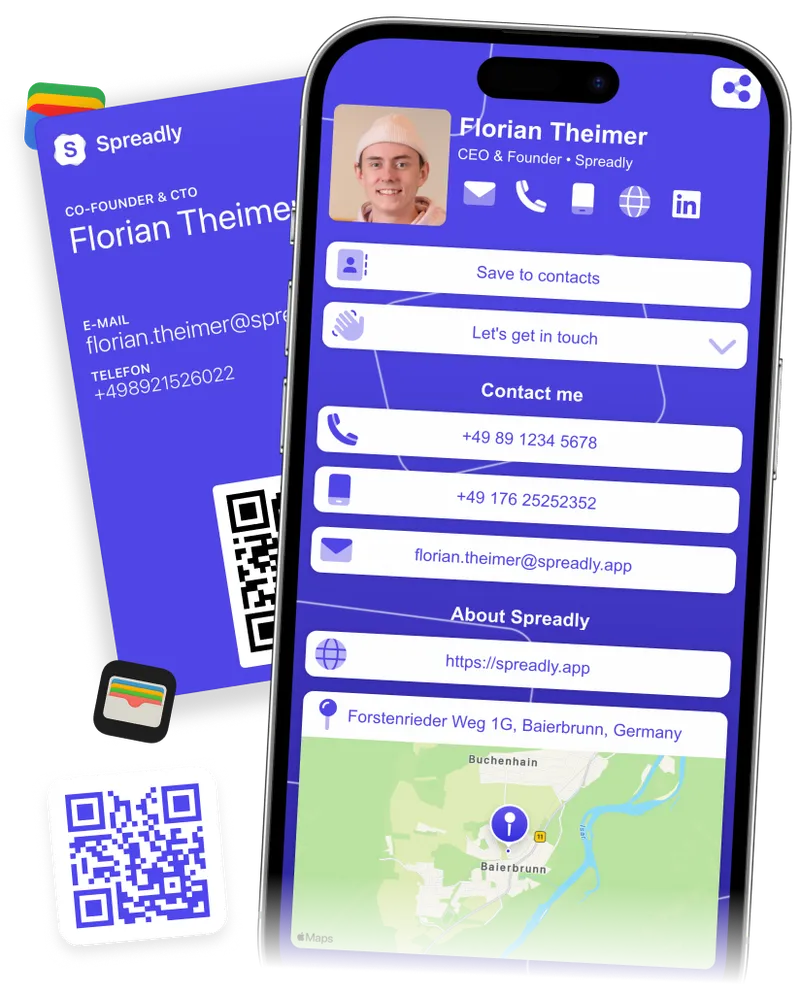
Your digital business card in Apple Wallet and Google Wallet
Open your card from the lock screen and show the QR code. The other person scans it with the camera and saves your contact details. No app needed.


Add your business card to Apple Wallet in three steps
The same steps work for Google Wallet on Android.
What your wallet pass shows
The front shows your name, job title, email, and phone numbers, with your company name and photo. Apple Wallet also shows your logo.
The QR code opens your full digital business card with all your links. Or it holds your contact details directly, so people can save them without internet.
The back of the pass lists the link to your card and your other links.
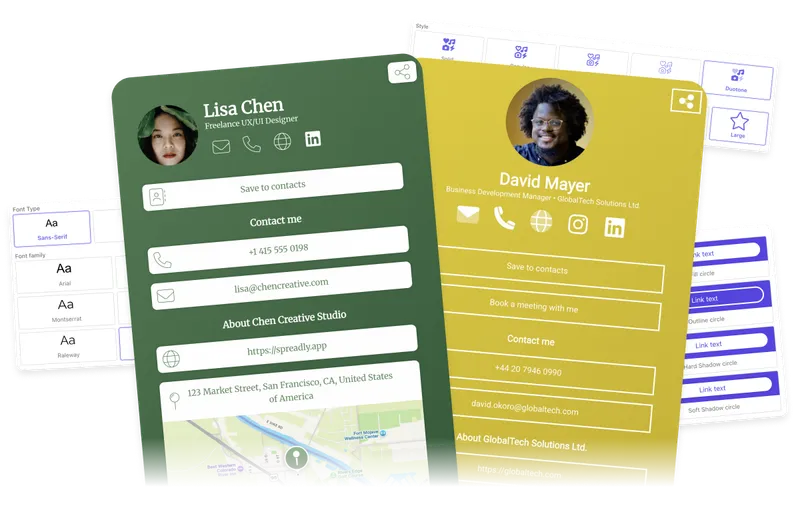
Make the pass match your brand
Your pass takes its design from your digital business card. Change the card, and the pass follows.
On the free plan, the pass uses the main color of your card, with black or white text that is easy to read.
On paid plans, choose your own background color for the pass and the text color for Apple Wallet in the design editor.
For teams, set the design once in a company template. Every employee's pass uses it.
Your card is ready before the conversation ends
Questions about wallet business cards
Create your card in Spreadly, open Share, and tap "Add to Apple Wallet". On Android, tap "Add to Google Wallet" instead. The pass then sits in your wallet next to your tickets and boarding passes.
Yes. Apple Wallet and Google Wallet are included in the free plan. On the free plan, the pass shows "Powered by Spreadly". Paid plans remove it.
No. They scan the QR code with their phone camera. Your card opens in the browser, and they save your contact details with one tap.
Yes. When you change your card, Spreadly updates the pass in Apple Wallet and Google Wallet. You do not need to add it again.
Yes. The pass uses the color, photo, and logo of your digital business card. On paid plans, you can also pick your own background color for the pass and the text color for Apple Wallet. Passes already in a wallet update by themselves.
Your pass always opens without internet. By default, the QR code opens your online card, so the other person needs internet. Turn on the offline QR code, and the code holds your contact details directly, so they can save them without any connection.
A screenshot gets lost among your photos and shows only a code. The wallet pass shows your name, photo, and contact details, opens from the lock screen, and stays up to date.
No. A wallet pass is shared by QR code. To share by tap, pair your digital business card with an NFC card.
Yes. Admins can send each employee their card by email with "Add to Apple Wallet" and "Add to Google Wallet" buttons. Passes follow your company template, so design changes reach every wallet. Learn more about digital business cards for teams.
No. The pass only holds your contact details and a QR code. No payment data is involved.
Wallet is one of many ways to share your card. See everything you can do with a digital business card.